Transferring files from your iPhone to a laptop doesn’t have to be difficult. Whether you’re moving photos, videos, or documents; there are several easy ways to do it, both with and without cables.
In this guide, we’ll cover every method, from traditional USB transfers to modern peer-to-peer wireless transfers using TransferWow.com; the fastest, free, and unlimited file transfer platform for any device.
🔌 1. Transfer Files from iPhone to Laptop Using USB Cable
This is the most direct and reliable method. Using the A type or C Type Port for Windows Laptop and Directly transfer the Files from Iphone to Laptop.
🧭 Steps (Windows Laptop)
- Connect your iPhone to your laptop using a Lightning-to-USB cable.
- Tap “Trust This Computer” on your iPhone if prompted.
- Open File Explorer → This PC → Apple iPhone.
- Open DCIM folder → Copy the photos/videos to your laptop.
For Macbook we get multiple options, as we can use the same account on both device we can easily transfer files without wires, but lets use Type C cables to send files.
🧭 Steps (MacBook)
- Connect your iPhone to Mac.
- Open Finder or Photos app.
- Choose your iPhone and import files you want.
✅ Pros:
- Fast and stable
- No internet required
❌ Cons:
- Limited to photos/videos (not all file types)
- Requires cable connection
☁️ 2. Transfer Files via iCloud
Using Cloud Store and Share methode just like the Google Drive for ipHone we can use iCloud and syncs your files automatically across Apple devices and browsers.
📋 Steps:
- On iPhone → Go to Settings → iCloud → iCloud Drive → Enable it.
- Upload your files to iCloud.
- On laptop → Visit iCloud.com or open iCloud Drive app (Mac).
- Download your files directly.
✅ Pros:
- Wireless and automatic
- Works across all Apple devices
❌ Cons:
- Limited free storage (5 GB)
- Slower for large files
📱 3. Transfer Using AirDrop (Mac Only)
I just talked about the most easy wireless method in the USB wired transfer section. If you have a MacBook, AirDrop is the easiest and fastest way.
🔄 Steps:
- Enable Bluetooth & Wi-Fi on both iPhone and Mac.
- On iPhone → Select files → Tap Share → AirDrop → Choose your Mac.
- On Mac → Accept the transfer.
✅ Pros:
- Very fast and secure
- No cables needed
❌ Cons:
- Works only between iPhone and Mac (not Windows)
⚡ 4. The Fastest Way: Peer-to-Peer File Transfer via TransferWow.com
When you want speed, no limits, and any-device compatibility, use TransferWow.com — a browser-based, peer-to-peer, free file transfer tool.
| Feature | TransferWow Advantage |
|---|---|
| ⚙️ Platform | Works on iPhone, Android, Windows, Mac, Linux |
| ⚡ Speed | Depends upon your Wifi/Internet (Upto 50MBPS) |
| 🔒 Security | End-to-end encrypted (no cloud storage) |
| 📁 File Size | No limits: send GBs freely |
| 🌍 Internet | Works via Wi-Fi or Internet |
| 💸 Price | 100% free, forever |
How to Share File Using TransferWoW P2P Tool?
When you visit the TransferWoW.Com Website you will see a Page with Drop File Here – Instant File Transfer. This is Primary option to share the files. Another page you see is TransferNow which is designed to use your Local Area Network both work same just matter of Internet Usage and Speed.
Step by Step Guide: Instant Transfer
Step 1: First Visite and Open the website TrasnferWoW.Com

Step 2: Then Drop or Select your File/Files that you want to send your Laptop and Click on Generate Shareable Link Button
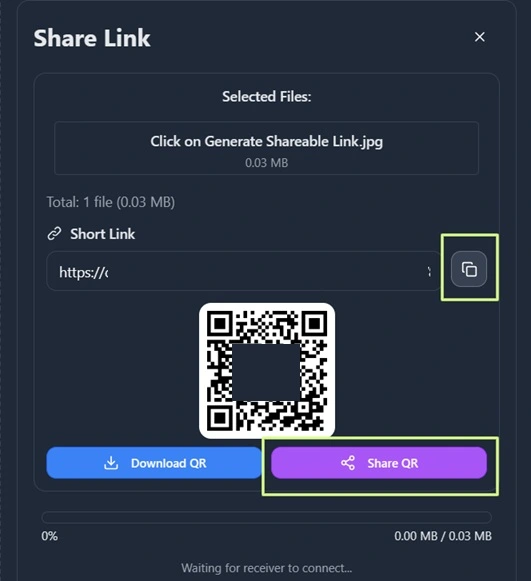
Step 3: Then use the Link, or QR to Start the File Transfer. You can Share the Link using Whatsapp Web/Email or manually Type in your Browser.
Step by Step Guide: Nearby Transfer
Step 1: First Visite and Open the web Page TrasferNow – TrasnferWoW.Com (Open it on both Sender and Receiver Device)

Step 2: Select the File/Files You want to Share with your Laptop and or Other Device, and Click on Generate Share Code button.
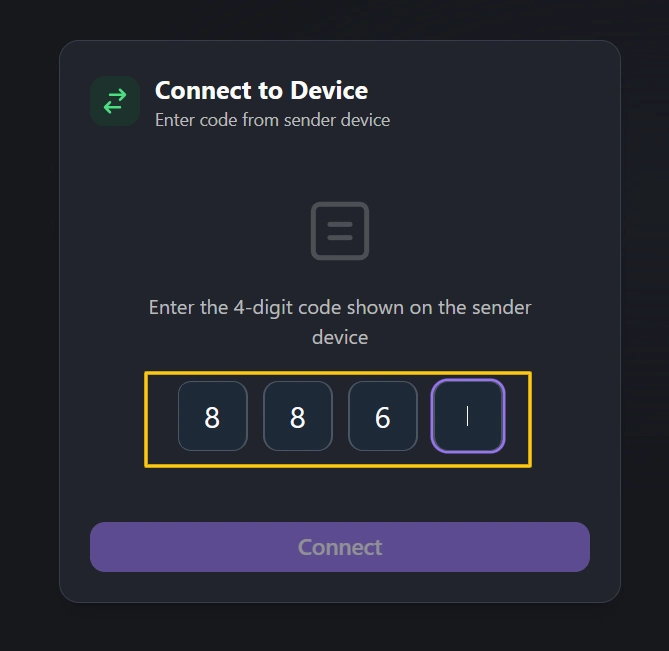
Step 3: Then you will see a 4 Digit Code, Enter the Code in the Connect to Device option on Receiver Side and click Connect Button.
The Connection will be established and file transfer will start instantly.
📊 Comparison Table
| Method | Speed | File Limit | Platform | Internet Needed | Ease |
|---|---|---|---|---|---|
| USB Cable | ⚡ Fast | None | Windows/Mac | ❌ No | ⭐⭐⭐⭐ |
| iCloud | ⚠️ Medium | Limited | All | ✅ Yes | ⭐⭐⭐ |
| AirDrop | 🚀 Fast | None | iPhone–Mac only | ⚙️ Optional | ⭐⭐⭐⭐ |
| 🐢 Slow | 25MB | All | ✅ Yes | ⭐⭐ | |
| TransferWow | 🚀 Super Fast | ❌ Unlimited | Any Device | ✅ Yes | ⭐⭐⭐⭐⭐ |
FAQs – How to Transfer Files from iPhone to Laptop❓
Q1. Can I transfer large videos from iPhone to Windows laptop?
Answer: Yes! Use TransferWow, it transfers large videos directly with no file size limit.
Q2. Is TransferWow safe?
Answer: Yes, all transfers are end-to-end encrypted, and files never go to any server.
Q3. Does TransferWow work with iPhone and Android too?
Answer: Absolutely! It works across any device or platform using just a browser.
Q4. Do I need an app to use TransferWow?
Answer: No apps, no installation; just visit TransferWow.com.
Q5. Can I use it offline?
Answer: Yes, it works via local Wi-Fi or hotspot for instant peer-to-peer transfer.
❤️ Final Thoughts
Whether you use USB, AirDrop, or iCloud, transferring files from iPhone to laptop is easy.
But for speed, privacy, and no file limits, nothing beats TransferWow.com; your all-in-one, peer-to-peer file transfer tool.
Try it now and experience fast, free, and unlimited sharing between any devices. ⚡