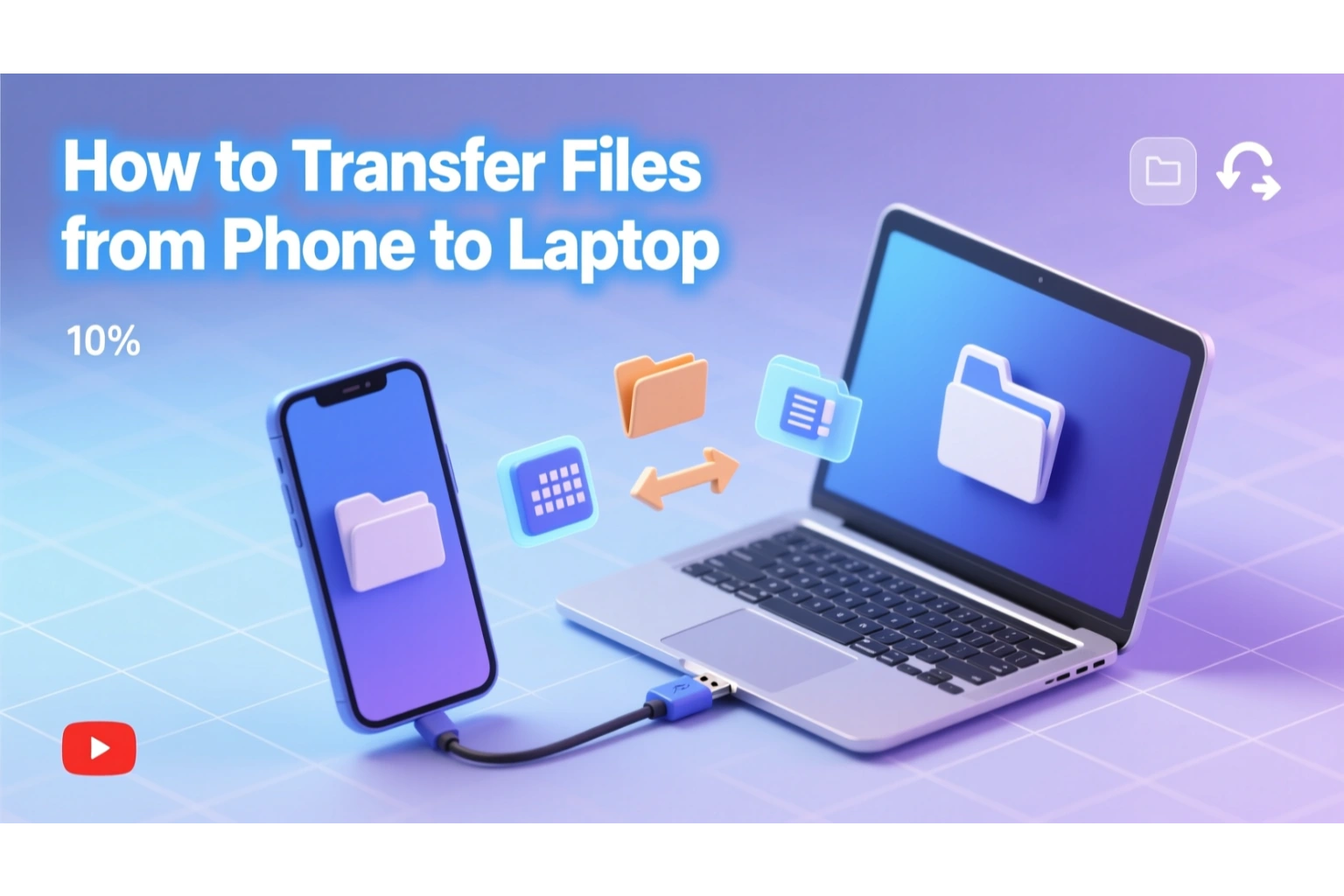
Transferring files from your phone to your laptop shouldn’t be complicated. Whether it’s photos, videos, or large files, there are several ways to move your data: with or without a USB cable.
In this guide, we’ll cover all methods:- including USB, wireless, Bluetooth, and finally, a modern peer-to-peer method using TransferWow.com; the fastest, free, and unlimited file transfer tool.
🔌 1. Transfer Files Using a USB Cable
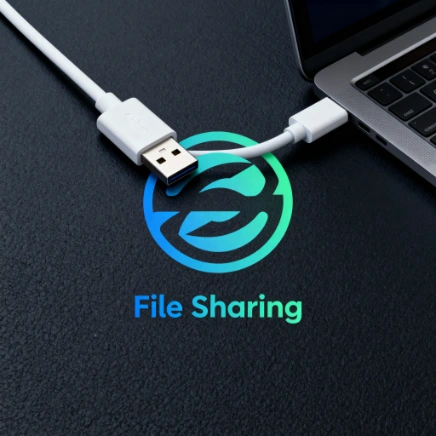
You can connect your Mobile to Laptop using USB Type A cable and choose File Transfer Option on your phone popup. This is the most traditional and reliable method.
Step by Step Guide:
- Connect your phone to your laptop using a USB cable.
- On your phone, select “File Transfer” (MTP) mode.
- Open File Explorer (Windows) or Finder (Mac).
- Browse your phone’s storage and copy/paste files to your laptop.
✅ Pros:
- Fast and stable connection
- No internet required
- Works for all file types
❌ Cons:
- Requires a USB cable
- Cable Distance
- Some drivers may need installation
🌐 2. Transfer Files Without USB (Wireless Methods)
Wireless file transfer often not used by all people, because it require some hastle to get device connected. If you don’t have a USB cable handy, try these wireless options. One of the common Wireless File Share methode is Google Files Nearby File Share.
a. Using Cloud Storage
A Traditional hastlefree UPLOAD & DOWNLOAD Method: Upload files from your phone and download them on your laptop.
Popular services: Google Drive, OneDrive, Dropbox.
Steps:
- Open the cloud app on your phone.
- Upload your files.
- Open the same service on your laptop and download them.
Drawbacks:
- Limited free storage (usually 5–15 GB)
- Slower for large files
b. Using Email or Messaging Apps
Similar to the Above methode but most common used is Gmail, which again as file size limitation. Attach small files (under 25MB) and send to yourself.
Drawbacks:
- File size limits
- Slow for videos or large documents
📡 3. Transfer Files via Bluetooth
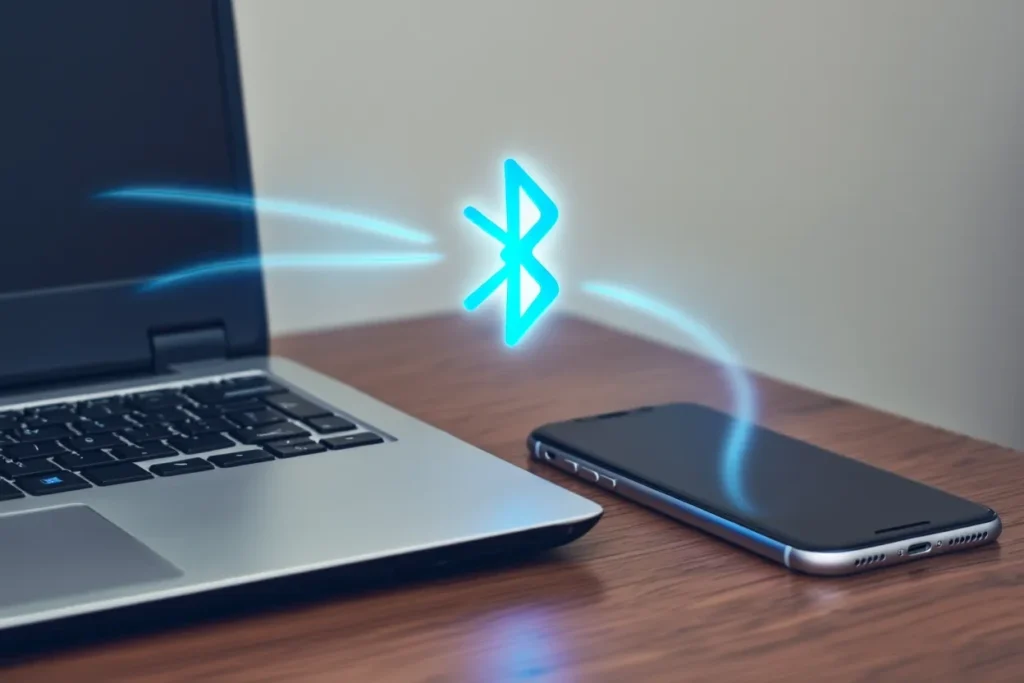
Bluetooth is simple and the oldest wireless methode of file sharing, but very slow for large files. an average bluetooth file transfer speed depends upon your distance and ranges upto 100meters and 2MBPS Maxx. I have seen the bluetooth file speed withing 10feet range as 200kb maxx.
Steps:
- Turn on Bluetooth on both devices.
- Pair your phone and laptop.
- Select files on your phone → Share via Bluetooth → Choose your laptop.
✅ Pros:
- No internet or cable required
❌ Cons:
- Extremely slow (especially for photos or videos)
- Not suitable for big files
⚡ 4. Wireless & Peer-to-Peer File Transfer (Fastest Option)
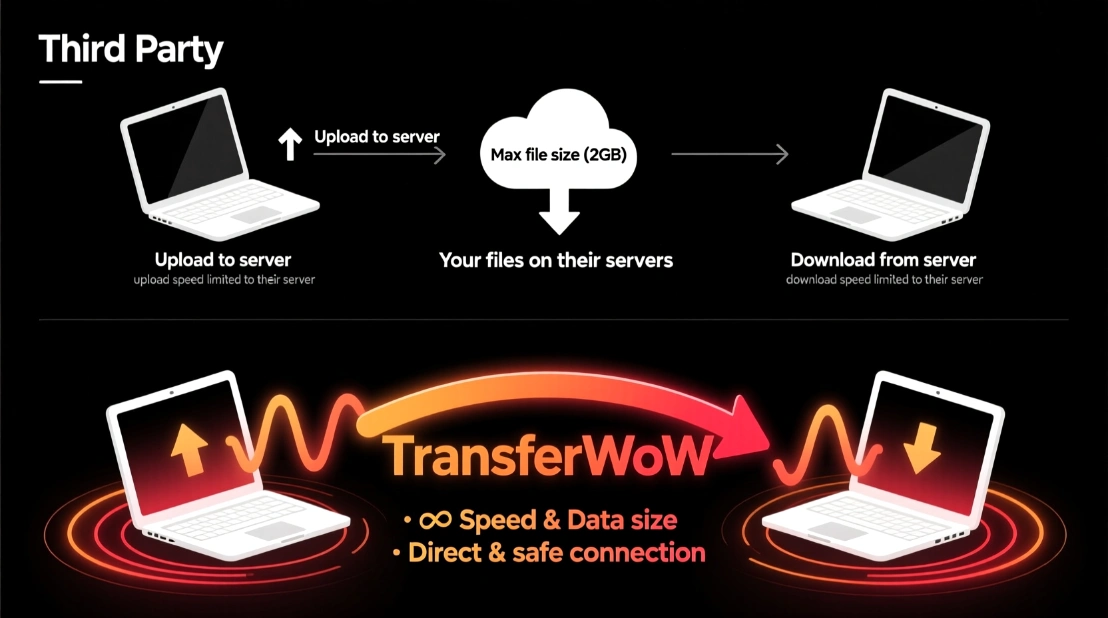
A Peer to Peer or P2P or also known as WebRTC, is designed by Google. The P2P WebRTC protocol was design to send and receive files from any device to any device with no size limit and speed limit upto 50MBPS. Here’s where TransferWow.com changes the game.
No cables. No apps. No login. No limits.
🚀 Transfer Files with TransferWow.com
TransferWow is a peer-to-peer file transfer platform that lets you send or receive files instantly between any devices, phone, laptop, tablet, or PC: all via browser.
| 🔥 Feature | 🚀 TransferWow Advantage |
|---|---|
| Speed | Upto 50MBPS |
| File Size Limit | ❌ No limits single/Multiple |
| Platforms | Works with All Browsers |
| Internet | Uses Internet & Local Area Network if Available |
| Privacy | End-to-end encrypted, no uploads to servers |
| Cost | 💯% FREE!! |
How to Share File Using TransferWoW P2P Tool?
When you visit the TransferWoW.Com Website you will see a Page with Drop File Here – Instant File Transfer. This is Primary option to share the files. Another page you see is TransferNow which is designed to use your Local Area Network both work same just matter of Internet Usage and Speed.
Step by Step Guide: Instant Transfer
Step 1: First Visite and Open the website TrasnferWoW.Com
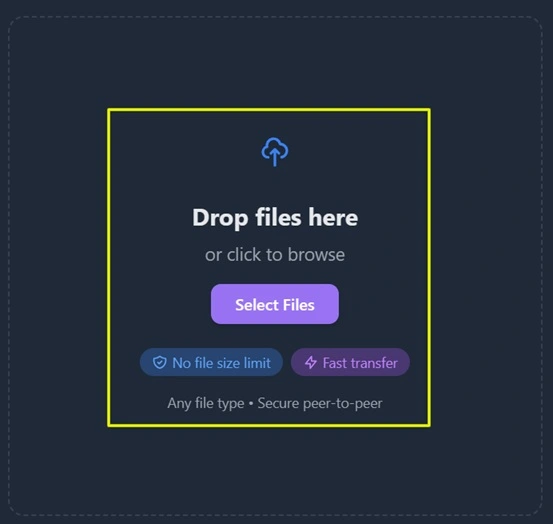
Step 2: Then Drop or Select your File/Files that you want to send your Laptop and Click on Generate Shareable Link Button
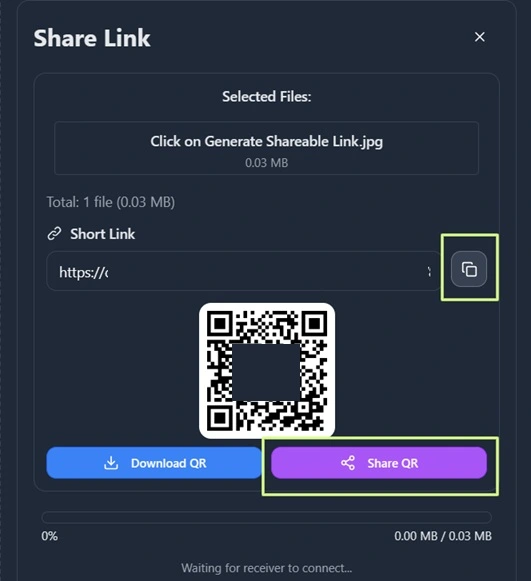
Step 3: Then use the Link, or QR to Start the File Transfer. You can Share the Link using Whatsapp Web/Email or manually Type in your Browser.
Step by Step Guide: Nearby Transfer
Step 1: First Visite and Open the web Page TrasferNow – TrasnferWoW.Com (Open it on both Sender and Receiver Device)
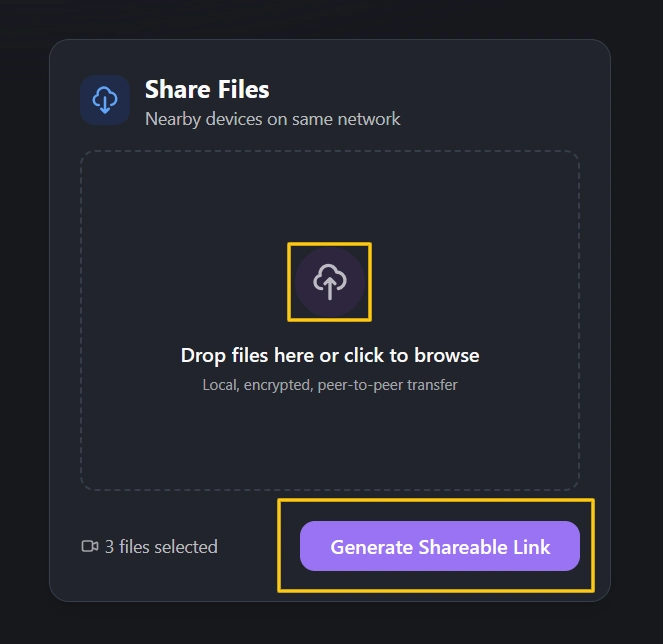
Step 2: Select the File/Files You want to Share with your Laptop and or Other Device, and Click on Generate Share Code button.
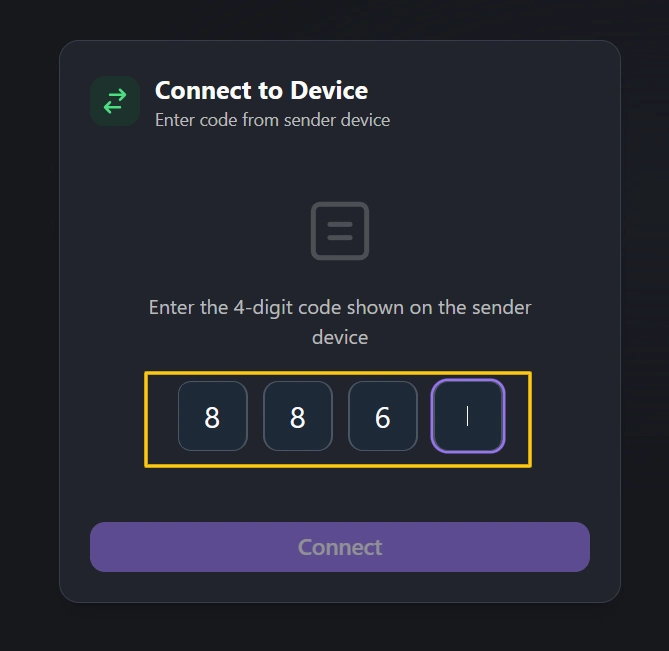
Step 3: Then you will see a 4 Digit Code, Enter the Code in the Connect to Device option on Receiver Side and click Connect Button.
The Connection will be established and file transfer will start instantly.
💡 Tips for Faster File Transfer on TransferWow.Com
- Use High Speed internet, the Overall Transfer Speed depends upon senders and Receivers Internet Speed
- Keep Both Devices Browser Tab On Screen so the Device give priority to Transferwow
- Stay Close to your WiFi Router if using.
📋 Quick Comparison Table:
Lets compare our above discussed methodes about How to Transfer Files from Phone to Laptop?
| Method | Speed | Internet Needed | Limit | Ease | Ideal For |
|---|---|---|---|---|---|
| USB Cable | ⚡ Fast | ❌ No | None | ⭐⭐⭐ | Large transfers |
| Cloud | ⚠️ Medium | ✅ Yes | ✅ Limited | ⭐⭐ | Backup sharing |
| Bluetooth | 🐢Very Slow | ❌ No | ✅ Limited | ⭐ | Small files |
| TransferWow | 🚀 Super Fast | ✅ Yes | ❌ Unlimited | ⭐⭐⭐⭐ | Large transfers, Any device, any file |
🤔 FAQs
Q1. Can I transfer files from Android to Windows without USB?
Answer: Yes! Use TransferWow.com for instant peer-to-peer transfers between Android and Windows, no apps or cables required.
Q2. Is TransferWow safe for large files?
Answer: Absolutely. TransferWow uses end-to-end encryption; your files never touch the cloud.
Q3. Can I use TransferWow between iPhone and Android?
Answer: Yes! It’s cross-platform; works between any phone, tablet, or computer with a browser.
Q4. Does TransferWow have a file size limit?
Answer: No. You can send unlimited file sizes, even multiple GBs at once.
Q5. Do I need to install anything?
Answer: No installation. Just open TransferWow.com and start transferring instantly.
🌈 Final Thoughts
Whether you prefer traditional USB or modern wireless transfer, speed and convenience matter most.
While cloud and Bluetooth are fine for small files, TransferWow.com delivers the fastest, safest, and most effortless way to transfer files from any device to any device: free, unlimited, and peer-to-peer.