In today’s fast-paced digital world, transferring files between computers shouldn’t feel like a chore. Whether you’re migrating data to a new laptop, collaborating on a project with a colleague, or simply sharing large media files with family, wired connections and clunky external drives are relics of the past.
This guide explores the best wireless methods File Transfers From PC to PC. We’ll cover built-in tools, cloud options, network sharing, and innovative peer-to-peer solutions like TransferWow a free, browser-based tool that handles unlimited files with lightning speed and top-tier privacy. No apps, no sign-ups, just pure efficiency.
By the end, you’ll have a clear comparison to choose the right method for your needs. Let’s dive in!
🔍 Quick Overview of Methods
Before the details, here’s a snapshot of what’s ahead:
| Method | Best For | Speed | Requirements |
|---|---|---|---|
| Nearby Sharing | Quick Windows transfers | Medium | Same Wi-Fi, Windows 10/11 |
| Cloud Storage | Cross-device backups | Medium (internet-dependent) | Online account |
| LAN Sharing | Large local files | Fast | Same network |
| Peer-to-Peer (e.g., TransferWow) | Unlimited, secure speed | Super Fast | Browser (optional internet) |
📡 Method 1: Windows Nearby Sharing (Built-In and Effortless)
If you’re on Windows, Microsoft’s Nearby Sharing is a hidden gem for quick, cable-free transfers. It uses Bluetooth and Wi-Fi to send files directly between devices on the same network.
Step-by-Step Guide
- Enable the Feature: On both PCs, open Settings > System > Nearby sharing and toggle it On. Select “Everyone nearby” for broader discoverability (or “My devices” for added security).
- Select Files: Right-click the file or folder in File Explorer, choose Share, and select the target PC from the list.
- Accept and Transfer: On the receiving PC, a notification will pop up—click Accept to start the transfer. Files land in the Downloads folder by default.
Pros
- Zero Cost: Completely built-in, no third-party tools needed.
- Secure: Uses proximity-based discovery to prevent unauthorized access.
- Simple: Ideal for small-to-medium files like documents or photos.
Cons
- Platform-Limited: Windows 10/11 only; no native support for macOS or Linux.
- Speed Caps: Slower for gigabyte-sized files (expect 10-50 MB/s depending on hardware).
- Network Dependency: Both devices must be on the same Wi-Fi.
Pro Tip: For better performance, ensure Bluetooth is enabled and devices are within 30 feet.
☁️ Method 2: Cloud Storage Services (Reliable and Versatile)
Upload once, download anywhere—that’s the magic of cloud platforms like Google Drive, OneDrive, or Dropbox. Perfect for transfers across different operating systems or when devices aren’t physically close.
Step-by-Step Guide
- Upload Files: Install the desktop app (or use the web version) on the source PC. Drag and drop files into your cloud folder, or right-click and select Upload.
- Share Securely: Generate a shareable link with optional expiration dates or password protection. Send it via email, chat, or QR code.
- Download on Target PC: Log in to the same account on the receiving PC and download via the link or synced folder.
Pros
- Cross-Platform Magic: Works seamlessly on Windows, macOS, Linux, even mobile devices.
- Backup Bonus: Files stay synced and accessible forever (with paid storage upgrades).
- Collaboration-Friendly: Real-time editing for docs and spreadsheets.
Cons
- Internet Bottleneck: Upload/download speeds hinge on your connection—slow broadband means waiting.
- Storage Limits: Free tiers cap at 5-15 GB; larger files may require splitting or premium plans ($1.99+/month).
- Privacy Note: Files are stored on remote servers, so use encryption for sensitive data.
Pro Tip: Compress files into ZIP archives before uploading to save time and bandwidth.
🌐 Method 3: Local Network (LAN) Sharing (No Internet, All Speed)
For devices on the same home or office Wi-Fi, direct network sharing turns your router into a private highway. No cloud middleman—just pure local transfer power.
Step-by-Step Guide (Windows Focus)
- Set Up Sharing on Source PC: Right-click the folder in File Explorer > Properties > Sharing tab > Advanced Sharing. Check Share this folder, set permissions (e.g., read/write), and note the network path (e.g., \\YOUR-PC-NAME\SharedFolder).
- Access from Target PC: Open File Explorer > Network (or type the path in the address bar). Browse to the shared folder—if prompted, enter credentials.
- Transfer Files: Drag and drop, or copy-paste. For bulk moves, use Robocopy in Command Prompt for automated, resumable transfers (e.g., robocopy \\source \\destination /E /R:3).
Pros
- Blazing Local Speeds: Up to 100+ MB/s on gigabit Wi-Fi—faster than most clouds.
- Unlimited Capacity: No size restrictions beyond your drive space.
- Offline-Friendly: Works without internet, ideal for secure environments.
Cons
- Setup Hurdles: Firewalls, user permissions, or mismatched workgroups can block access (troubleshoot via Settings > Network & Internet > Status).
- Windows-Centric: macOS/Linux require tweaks (e.g., SMB protocol enabling).
- Proximity Required: Devices must be on the same LAN.
Pro Tip: Disable password-protected sharing temporarily in Control Panel > Network and Sharing Center for easier testing, but re-enable for security.
⚡ Pro Method: Peer-to-Peer Tools (The Future-Proof Choice)
For unrestricted, cross-platform transfers without the fuss, peer-to-peer (P2P) services shine. They connect devices directly via browser, bypassing servers for speed and privacy. Our top pick: TransferWow, a free tool that’s as simple as drag-and-drop.
Why P2P Excels
- Direct Connection: Files stream straight from sender to receiver no detours.
- Universal Compatibility: Any OS, browser, or device (PC, phone, tablet).
- Privacy First: End-to-end encryption; files delete after transfer, never stored.
Step-by-Step Guide for TransferWow:
Step 1: First Visite and Open the website TrasnferWoW.Com
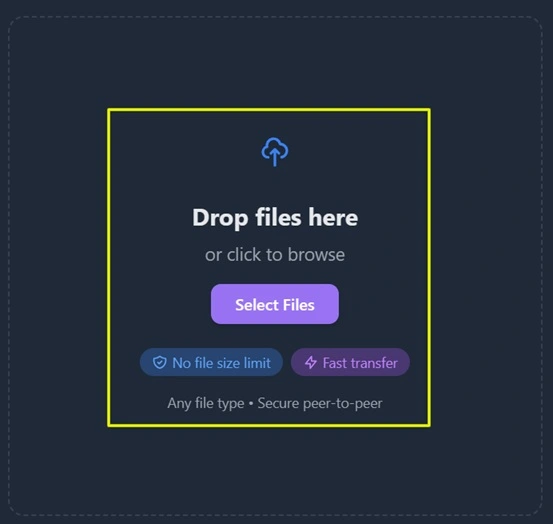
Step 2: Then Drop or Select your File/Files that you want to send your Laptop and Click on Generate Shareable Link Button
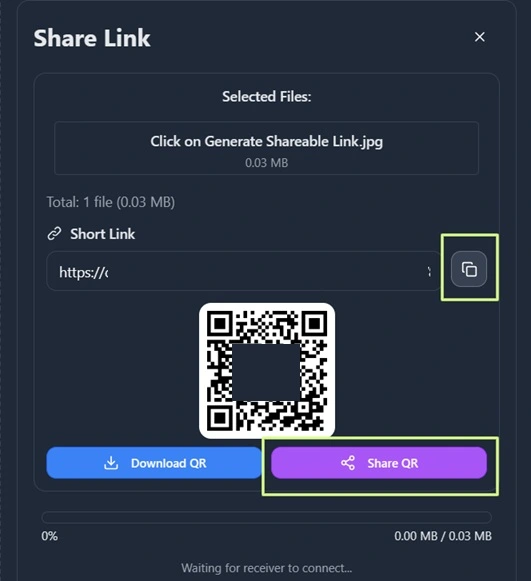
Step 3: Then use the Link, or QR to Start the File Transfer. You can Share the Link using Whatsapp Web/Email or manually Type in your Browser.
Option A: Instant Link Sharing (Internet-Optional)
- Visit TransferWow.com on the sender’s browser.
- Drag files into the upload zone or click Select Files supports unlimited size and multiples.
- Click Generate Shareable Link (or QR code). Share via email, WhatsApp, or copy-paste.
- On the receiver’s device, open the link the transfer starts automatically.
Option B: Nearby Code Transfer (Local Network Magic)
- Open TransferWow.com/TransferNow on both devices (same Wi-Fi recommended).
- Sender: Select files and click Generate Share Code get a 4-digit code.
- Receiver: Enter the code in Connect to Device and hit Connect.
- Watch the progress bar done in seconds!
Step 1: First Visite and Open the web Page TrasferNow – TrasnferWoW.Com (Open it on both Sender and Receiver Device)
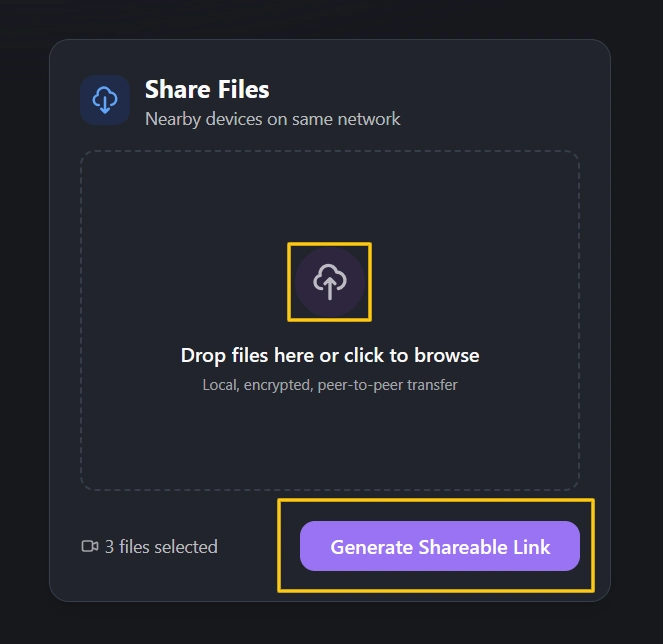
Step 2: Select the File/Files You want to Share with your Laptop and or Other Device, and Click on Generate Share Code button.
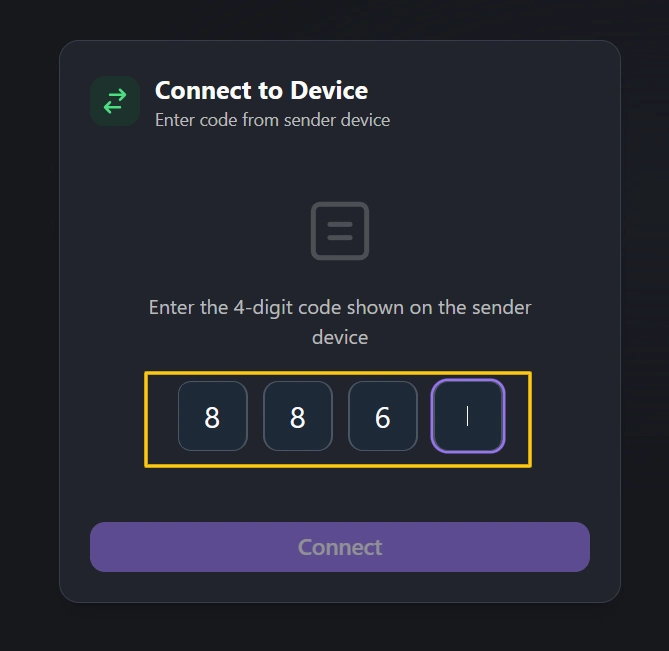
Step 3: Then you will see a 4 Digit Code, Enter the Code in the Connect to Device option on Receiver Side and click Connect Button.
Pros
- Unmatched Speed: Matches LAN rates (50-500 MB/s) with optional internet relay for remote use.
- No Limits or Costs: Unlimited files, zero fees, no accounts.
- Secure and Green: Encrypted, temporary connections reduce data center strain.
Cons
- Browser Dependency: Needs modern web support (rare issue today).
- Initial Setup: Slight learning curve for first-timers, but it’s one-and-done.
Pro Tip: For massive transfers (e.g., 100GB+), pause/resume if needed TransferWow handles interruptions gracefully.
📈 Side-by-Side Comparison
Choosing the right tool? This table breaks it down:
| Method | Speed Rating | Max File Size | Internet Needed? | Platforms Supported | Setup Ease (1-5) | Security Level |
|---|---|---|---|---|---|---|
| Nearby Sharing | Medium | ~1 GB practical | Local Wi-Fi | Windows only | 4 | High (proximity) |
| Cloud Storage | Medium | 15 GB free | Yes | All | 5 | Medium (server-stored) |
| LAN Sharing | Fast | Unlimited | Local Wi-Fi | Mostly Windows | 3 | High (network) |
| Email Attachments | Slow | 25 MB | Yes | All | 4 | Low (unencrypted) |
| TransferWow (P2P) | Super Fast | Unlimited | Optional | All | 5 | Very High (E2E) |
*Speed based on average home setups; actual results vary by hardware/network.
🛡️ Essential Tips for Secure Transfers
- Encrypt Sensitive Files: Use tools like 7-Zip before sending.
- Verify Connections: Always confirm the recipient’s device to avoid man-in-the-middle risks.
- Test Small First: Send a tiny file to ensure compatibility.
- Troubleshoot Common Issues: Check firewalls, update drivers, or restart routers.
🎯 Wrapping Up: Pick Your Perfect Transfer
Wireless file sharing has evolved from clunky cables to intuitive, instant options. For everyday Windows users, start with Nearby Sharing. Remote workers? Go cloud. Power users craving speed and freedom? TransferWow delivers it all—fast, free, and foolproof.
What’s your go-to method? Drop a comment below, or try TransferWow today for a transfer that’ll wow you. Safe sharing! 🔒