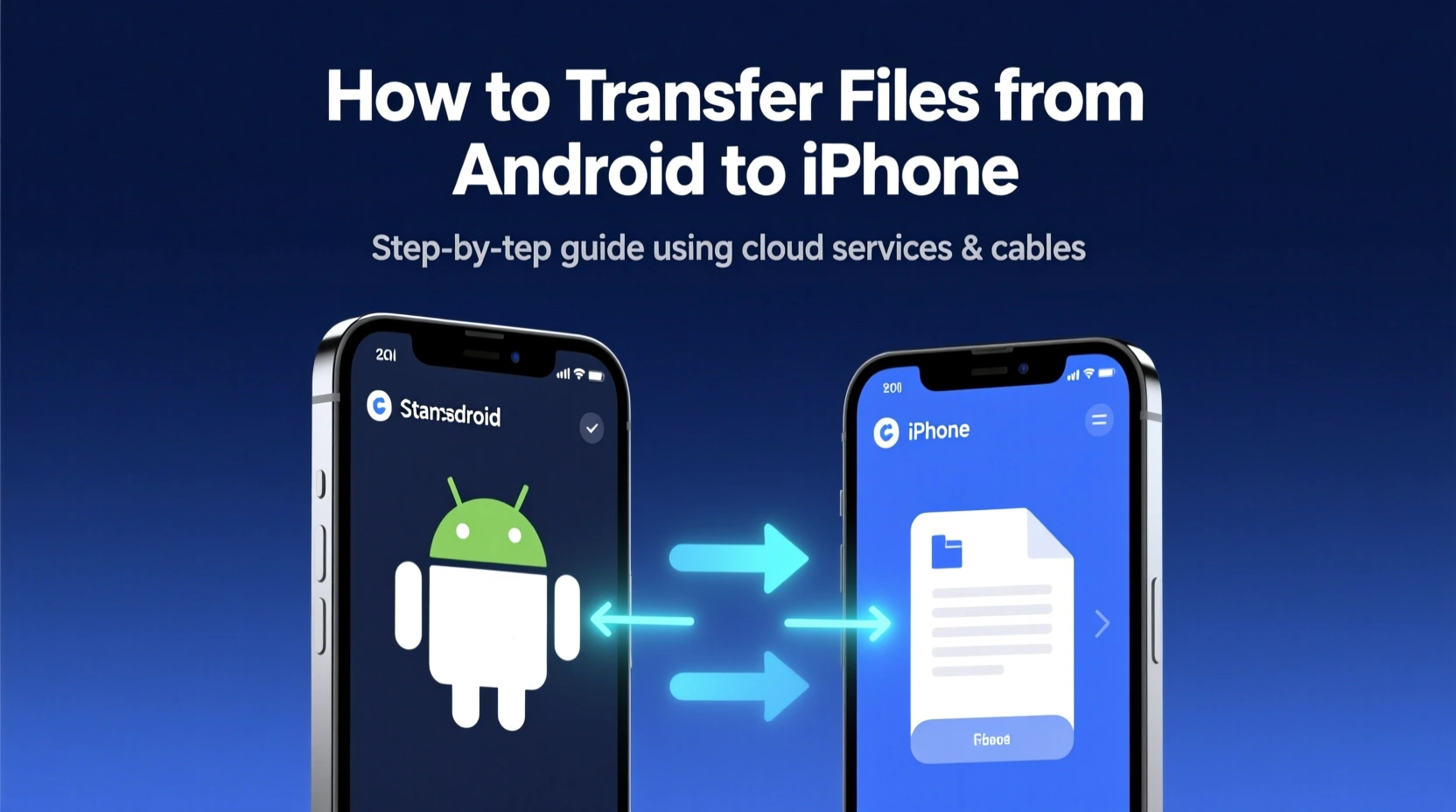
Switching from Android to iPhone or simply sharing files between them? It’s a common challenge; because Android and iOS work differently.
But don’t worry, this guide will show you every way to transfer photos, videos, and other files seamlessly between Android and iPhone, with or without cables.
We’ll finish with the best solution – TransferWow.com – a fast, free, and peer-to-peer tool that works on any device with no file size limits.
🔁 1. Using “Move to iOS” App (For Phone Setup Only)
If you’re setting up a new iPhone, Apple’s Move to iOS app is the official way.
📱 Steps:
- Install Move to iOS on your Android phone.
- During iPhone setup, choose “Move Data from Android.”
- On Android, enter the code shown on iPhone.
- Select what to transfer (photos, messages, contacts, etc.).
- Wait until transfer completes.
✅ Pros:
- Secure and official Apple tool.
- Moves contacts, messages, and camera photos.
❌ Cons:
- Works only during iPhone setup.
- No app data or large files.
- Requires stable Wi-Fi and both phones nearby.
☁️ 2. Transfer via Cloud Storage (Google Drive, iCloud, Dropbox)
Some Big Tech companies like Google and Apple provide cloud services where you can store and share your fiels. If you just want to move photos, videos, or documents, cloud storage works fine.
📥 Using Google Drive:
- Upload files from Android to Google Drive.
- On iPhone, open Drive app and download files.
📥 Using iCloud:
- Upload files to iCloud from a computer or browser.
- Access them on your iPhone via the Files app.
✅ Pros:
- Works even across long distances.
- No cable needed.
❌ Cons:
- Slower uploads/downloads.
- Limited free storage (5–15 GB).
- Requires good internet connection.
💡 3. Transfer via Email or Messaging Apps
The Traditional way to share files, its safe, and fast but not for big fiels. For small files (under 25 MB), you can just email or WhatsApp them to yourself.
Steps to Transfer Files from Android to Iphone:
- Attach the file in Gmail, WhatsApp, or Telegram.
- Open the same account on your iPhone.
- Download the attachment.
❌ Cons:
- File size restrictions.
- Compresses photos and videos.
- Not practical for bulk transfers.
⚡ 4. The Fastest Way: Peer-to-Peer Transfer via TransferWow.com
When speed, simplicity, and privacy matter, go for TransferWow.com. It’s browser-based, peer-to-peer, and unlimited; no apps, cables, or logins required.
🚀 Why Choose TransferWow?
| Feature | TransferWow Advantage |
|---|---|
| 🔄 Platform | Works on Android, iPhone, Windows, Mac, Linux |
| ⚡ Speed | Depend upon your WiFi Speed upto 50MBPS |
| 📁 File Size | No limits! send GBs of photos & videos |
| 🔒 Privacy | End-to-end encrypted & files never stored |
| 💸 Cost | 100% free & unlimited |
| 🌐 Connectivity | Works via Wi-Fi or mobile hotspot |
How to Share File Using TransferWoW P2P Tool?
When you visit the TransferWoW.Com Website you will see a Page with Drop File Here – Instant File Transfer. This is Primary option to share the files. Another page you see is TransferNow which is designed to use your Local Area Network both work same just matter of Internet Usage and Speed.
Step by Step Guide: Instant Transfer
Step 1: First Visite and Open the website TrasnferWoW.Com
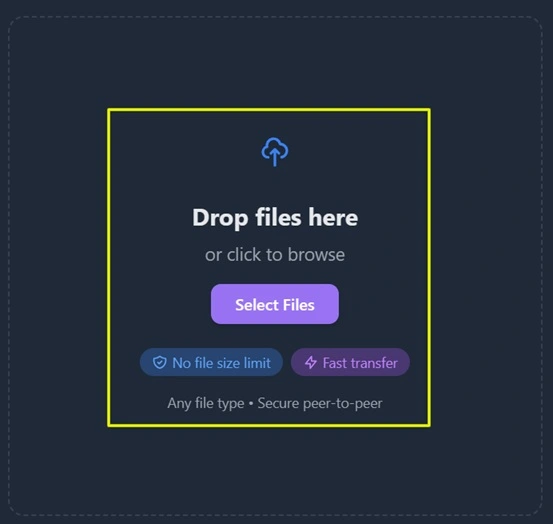
Step 2: Then Drop or Select your File/Files that you want to send your Laptop and Click on Generate Shareable Link Button
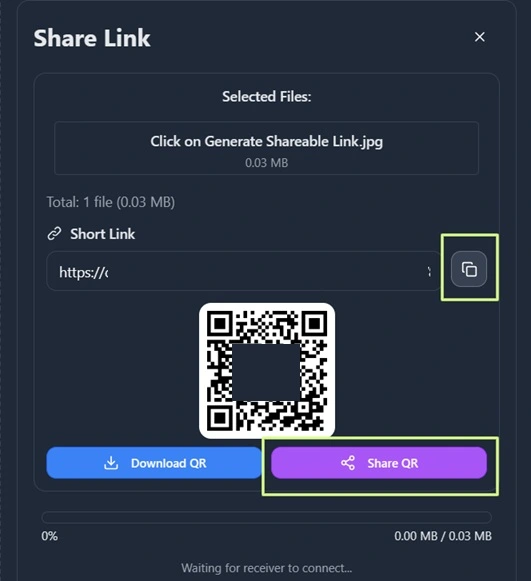
Step 3: Then use the Link, or QR to Start the File Transfer. You can Share the Link using Whatsapp Web/Email or manually Type in your Browser.
Step by Step Guide: Nearby Transfer
Step 1: First Visite and Open the web Page TrasferNow – TrasnferWoW.Com (Open it on both Sender and Receiver Device)
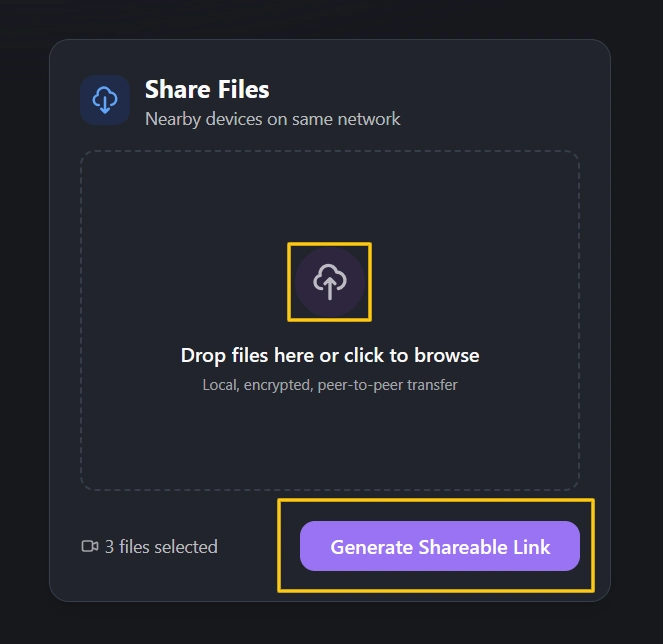
Step 2: Select the File/Files You want to Share with your Laptop and or Other Device, and Click on Generate Share Code button.
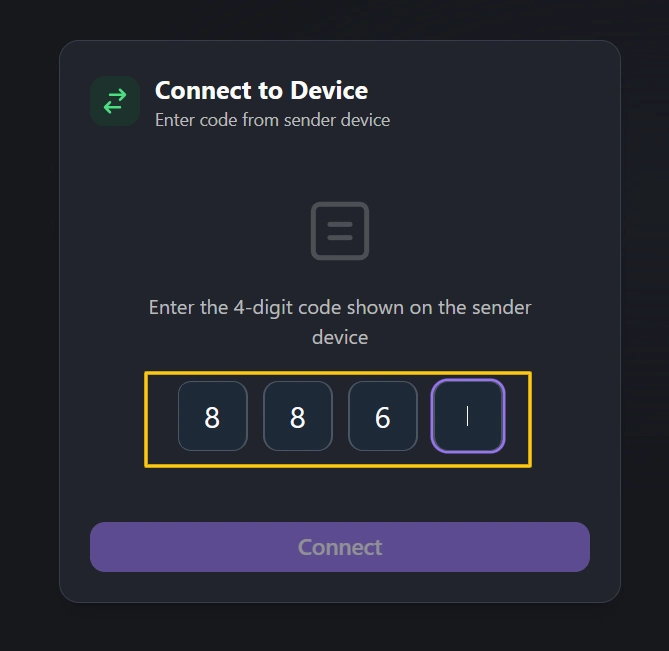
Step 3: Then you will see a 4 Digit Code, Enter the Code in the Connect to Device option on Receiver Side and click Connect Button.
The Connection will be established and file transfer will start instantly.
📊 Quick Comparison: Between All Transfer Modes
To Transfer Files from Android to iPhone we have multiple options, but the fast and secure one is using any Laptop in middle and transfering using cables. But if you want Fast and direct transfer use TransferWoW.Com
| Method | Speed | File Limit | Ease | Internet | Works Across Platforms |
|---|---|---|---|---|---|
| Move to iOS | ⚡ Fast | Limited | ⭐⭐⭐ | ✅ Yes | Android → iPhone only |
| Cloud Storage | ⚠️ Medium | Limited | ⭐⭐⭐ | ✅ Yes | Yes |
| 🐢 Slow | 25 MB | ⭐⭐ | ✅ Yes | Yes | |
| Bluetooth | 🚫 Not Supported | N/A | ⭐ | ❌ | No |
| TransferWow | 🚀 Super Fast | ❌ Unlimited | ⭐⭐⭐⭐ | ✅ Yes | ✅ Yes |
FAQs – Related to File Transfer from Android to iPhone:
Q1. Can I AirDrop from Android to iPhone?
Answer: No, but TransferWow offers the same peer-to-peer speed and simplicity, without needing Apple’s ecosystem.
Q2. Does TransferWow need an app?
Answer: No! it works directly in your browser.
Q3. Are my files stored online?
Answer: No. Transfers are device-to-device, fully encrypted, and never saved to cloud servers.
Q4. Can I send large video files?
Answer: Yes! You can send unlimited file sizes, even full HD or 4K videos.
Q5. Is it really free?
Answer: Yes, TransferWow.com is 100% free and has no size or speed restrictions.
💬 Final Thoughts
Transferring files from Android to iPhone doesn’t have to be a struggle.
While traditional options like “Move to iOS” or cloud storage can work, they’re often slow or limited.
If you want a fast, private, and unlimited solution:
👉 TransferWow.com is your go-to tool for instant peer-to-peer file sharing between any devices; Android, iPhone, or even laptops.